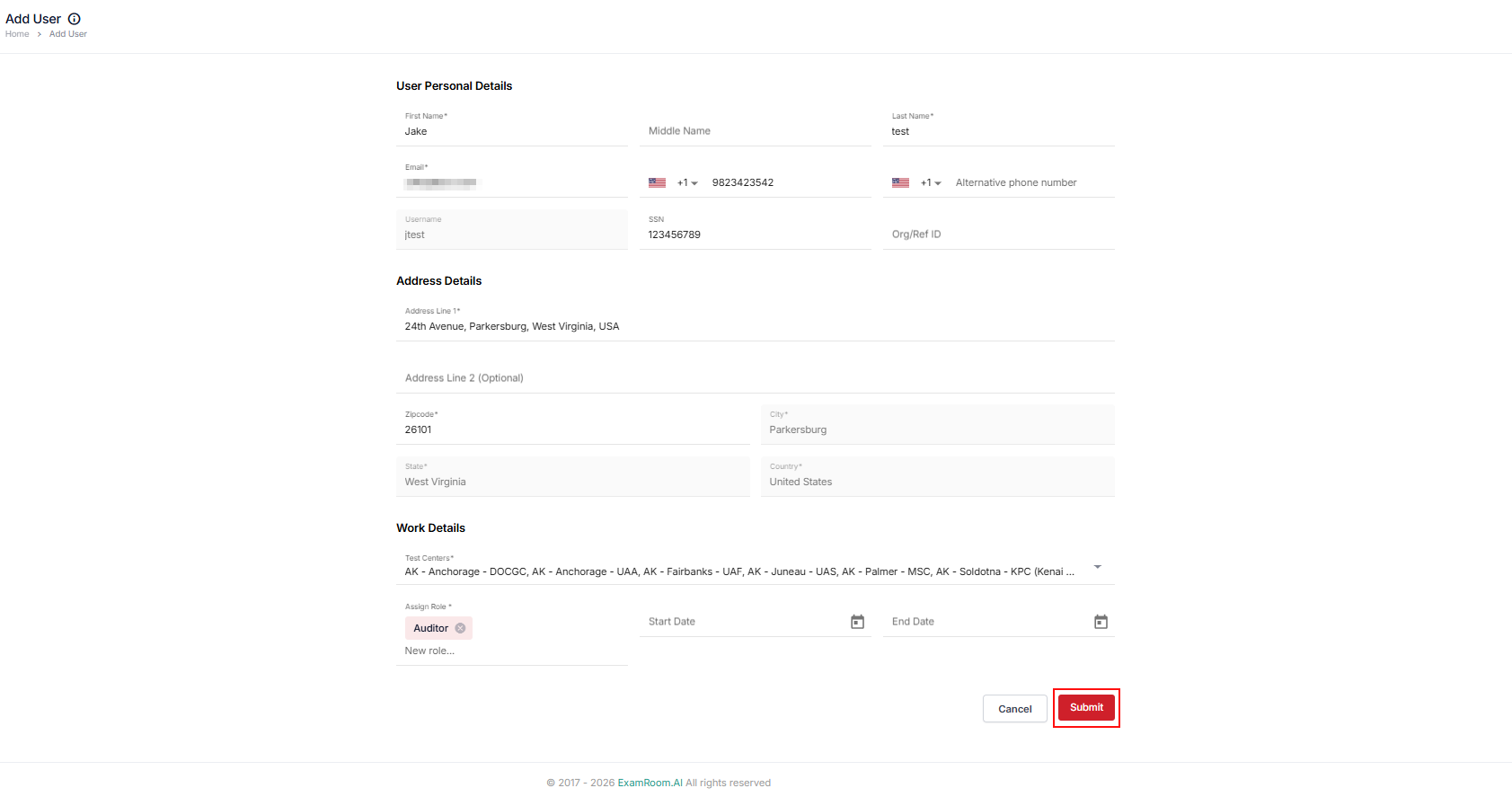
Add Users
- Click + Add Users to add a new user to the Test Center.
- In Enter the User details, fill out all the mandatory information listed below to add the user.
- Enter the First Name and Last Name.
- Enter the user’s Email. The user will receive an email notification with login process details.
- Enter the user’s Phone Number.
- Select the User’s Role from the dropdown. Depending on the role, the user will be authorized to access and manage TSM options. Multiple roles can be assigned to a single user.
- Select the Test Centers from the dropdown where you want to add the user.
- Enter the Address of the user.
- Click Submit to add the new user and Cancel to go back to users.
- After successfully adding, you can see all the users in the Users Tab.
- Users need to activate from the list sent over email. You can manage the user's active or inactive status under the Status tab.