View and Edit User
The Site Manager can add and manage users using Manage User in General settings in the Prov TSM console.
Note: Click the hamburger icon beside Add Users to customize the display sections.
- The Site Manager can view and edit the user details when applicable.
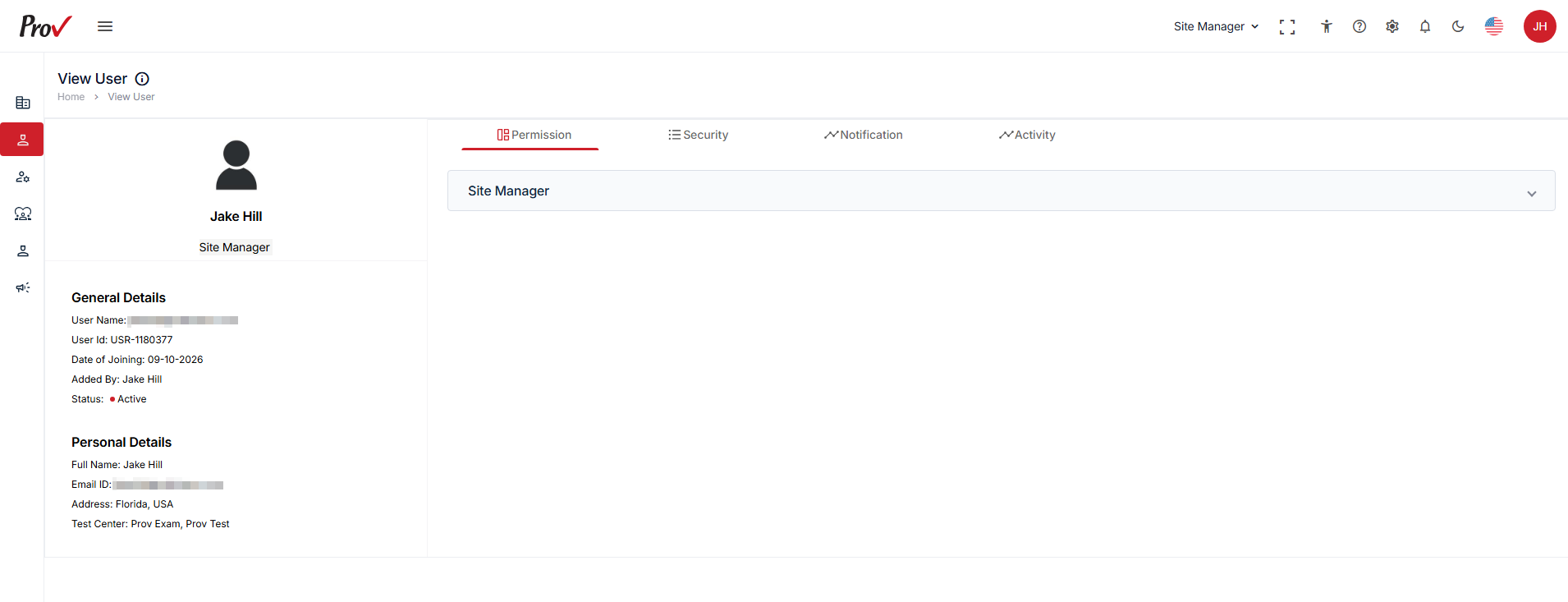
- Click the View icon under the Action tab to view the complete details.
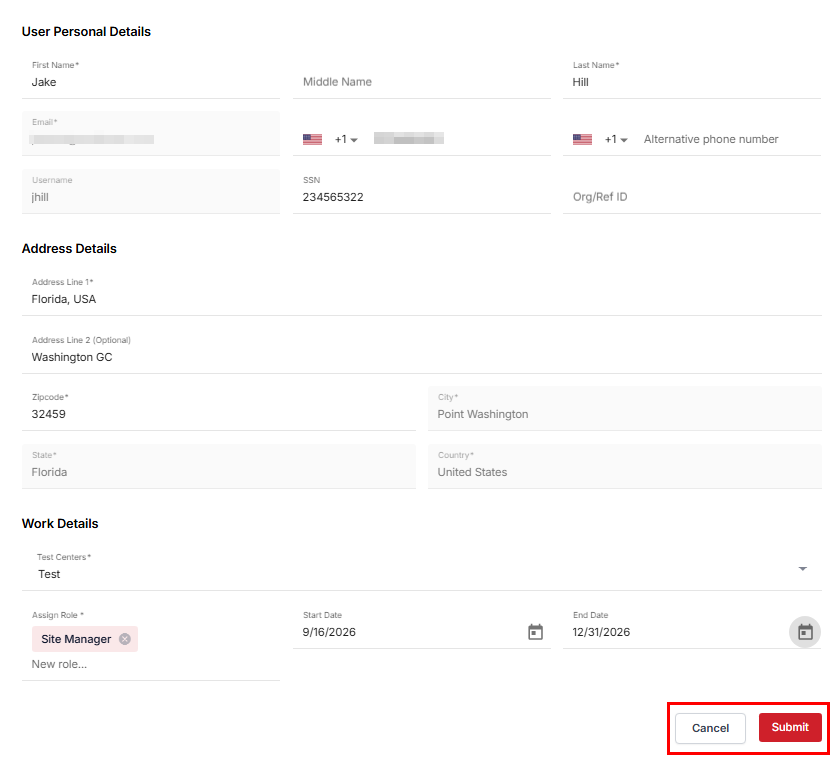
- Click the Hamburger icon and click Edit User under the action to edit the user details.
- Click the View icon under the Action tab.
- In the View User section, you can view the in-depth user general, personal, and permission details.
- Click the hamburger icon under the action to edit the user details.
- Click Submit to update the user details and Cancel to go back to users.