TSM Registration – Sign Up
The Prov Test Site Management platform is an application designed to streamline the management and oversight of certified test centers. It serves as a centralized system connecting test sites, test centers, and clients, ensuring seamless operations.
To enroll with the TSM platform, follow the steps below:
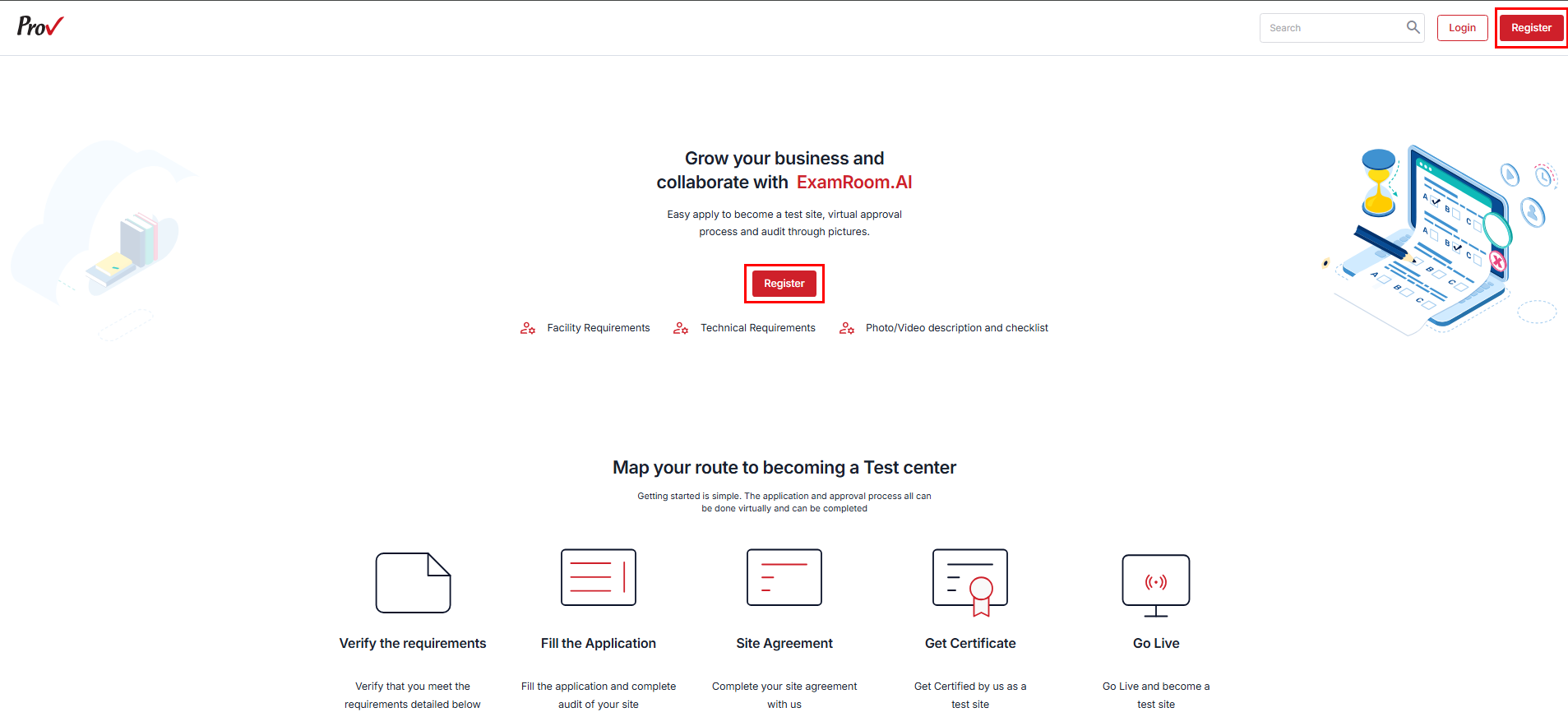
- Go to the Prov registration page using: provexam.examroom.ai/testsite
- Click Register to create a new account.
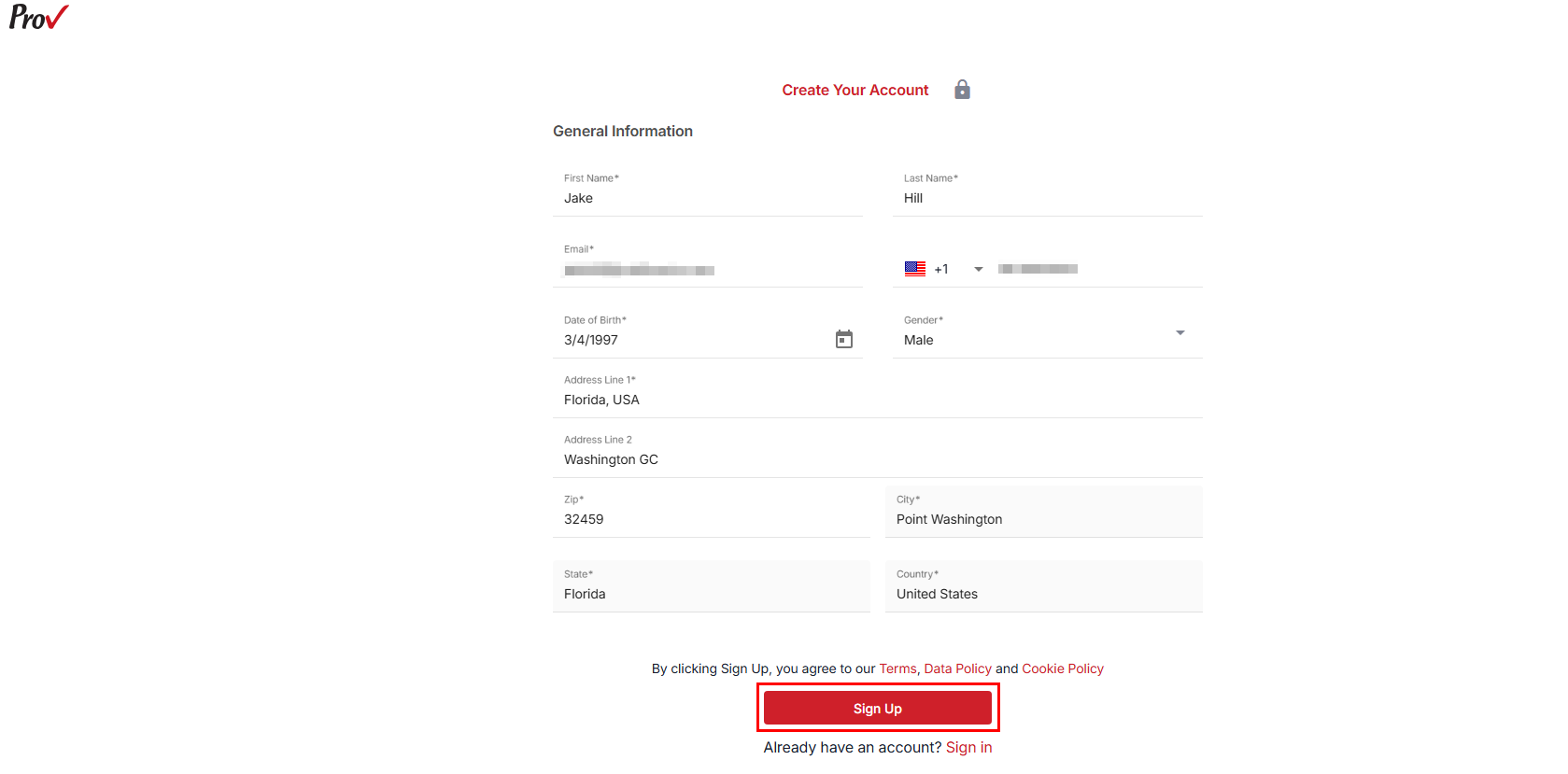
- Fill in the necessary details under the General Information section:
- First Name and Last Name: Enter your First and Last Name in the respective fields.
- Email: Enter your email Address.
- Phone Number: Enter your phone number.
- Date of Birth: You may provide your Date of birth; select the Calendar icon and choose the date from the calendar.
- Gender: You may provide the Gender details; select a gender from the available dropdown option.
- Address Line 1: Enter the street address, dropdown list will appear based on the entered details you can select your street address from the dropdown.
Address Line 2: Use this field to add more address details if needed.
Note: The Zip, City, State, and Country fields will be automatically filled once you select the street address in Address Line 1.
- After providing all the required details, select Sign Up to enroll.
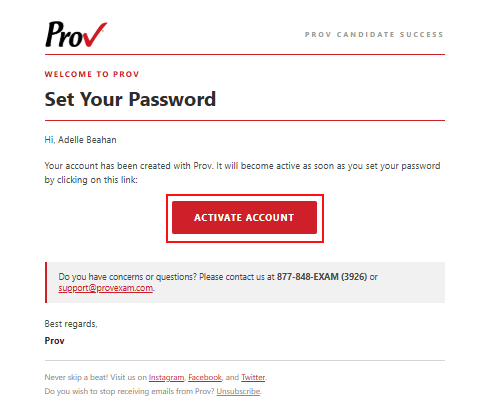
- After successful registration, a verification email is sent to the registered email address.
- Go to the registered email address and find the verification email.
- In the email, click the Activate Account link to set a new password.
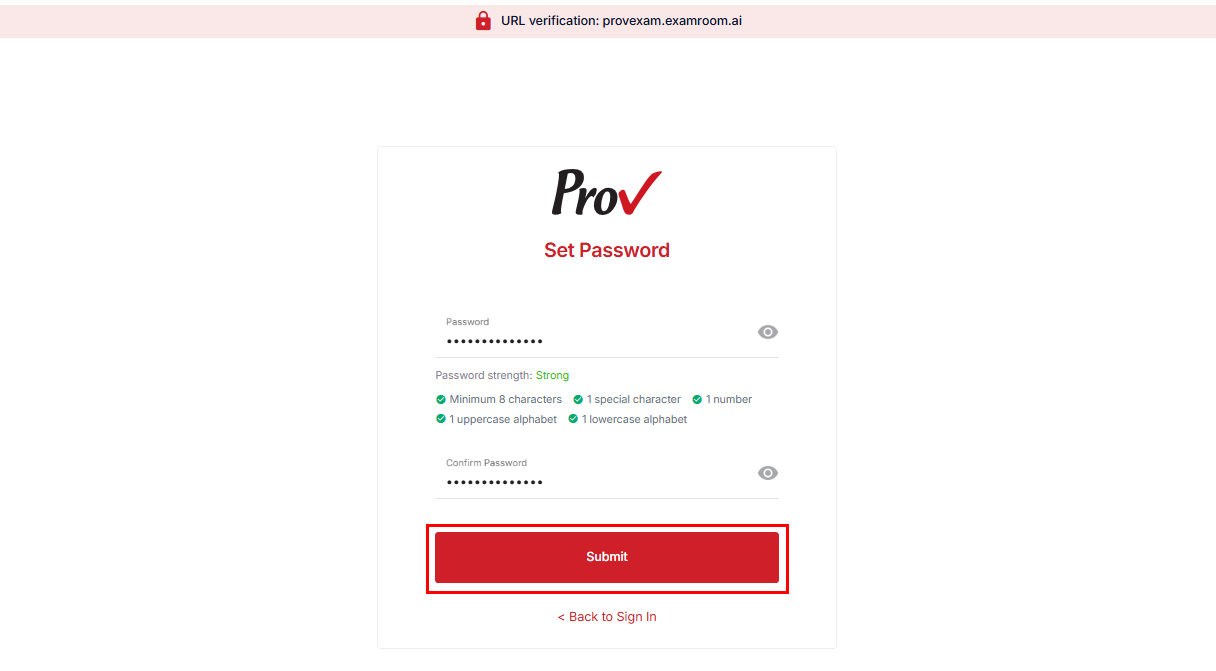
- On the Set Password page, enter your new password in the Password field and retype it in the Confirm Password field for verification.
Note: Please ensure the password meets the organization's security standards, which require a minimum of fourteen 14 characters that include at least one uppercase, one lowercase, one digit, and one special character.
- Click Submit to create and activate your account.
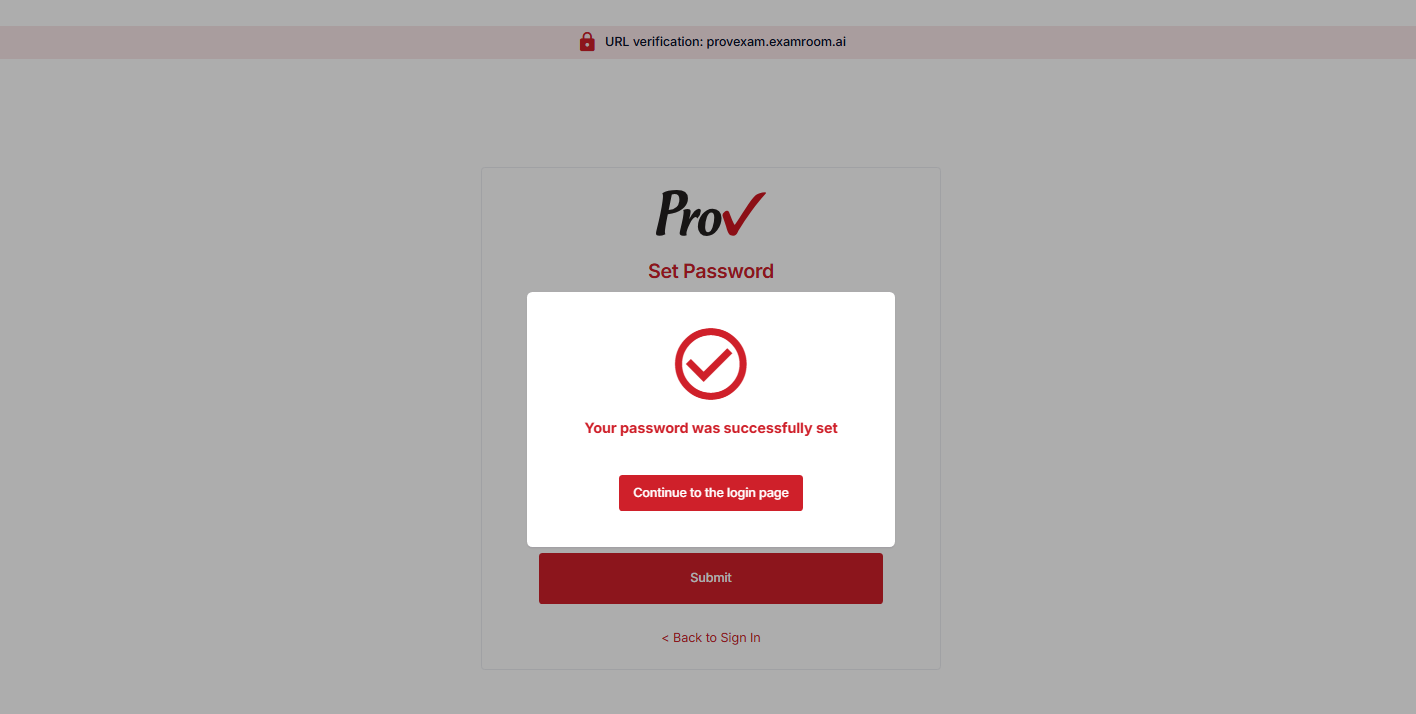
- After submitting, a dialog box appears, indicating that your password has been successfully changed. Click the Continue to the login page button to proceed to the login page and access your account.