View and Edit User Role
The Manage User Roles feature allows you to assign and manage user permissions according to operational needs. You can create various roles and assign them to both new and existing users. You can also assign multiple roles to a single user. By default, the Operations staff and Site Manager have access to this feature and can assign it to other roles if necessary. All role-based permissions can be customized through the General Settings in the Prov TSM console.
In this section, you can view a complete list of all user roles that have been created, along with their details. You can also manage and modify the access permissions for each role, ensuring the right level of access to TSM features and settings.
After logging into the Prov TSM console,
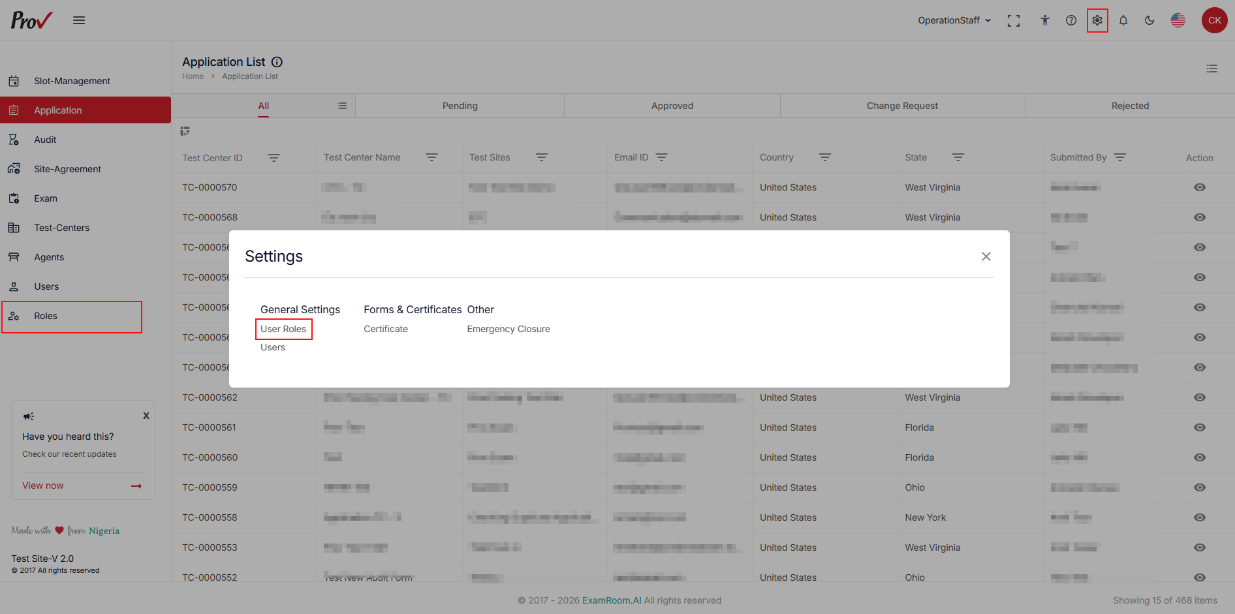
- Click the Settings icon to open the settings window.
- Click User Roles to update the user's access.
- Or click Roles from the side menu.
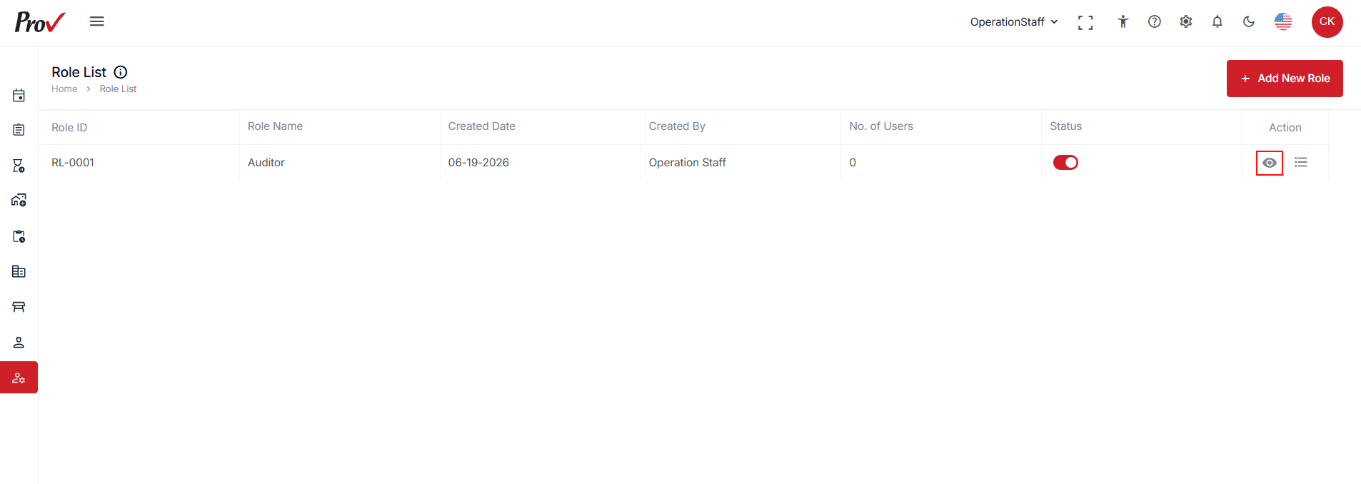
- Click the View icon under the action tab to view the in-depth role, general, permission, and added user details.
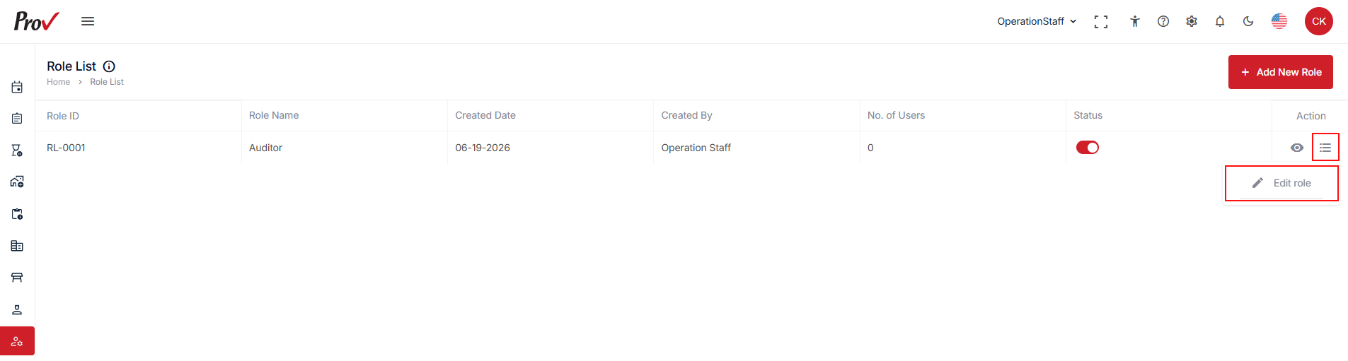
- Click the hamburger icon and select Edit role under the action to edit the role details.
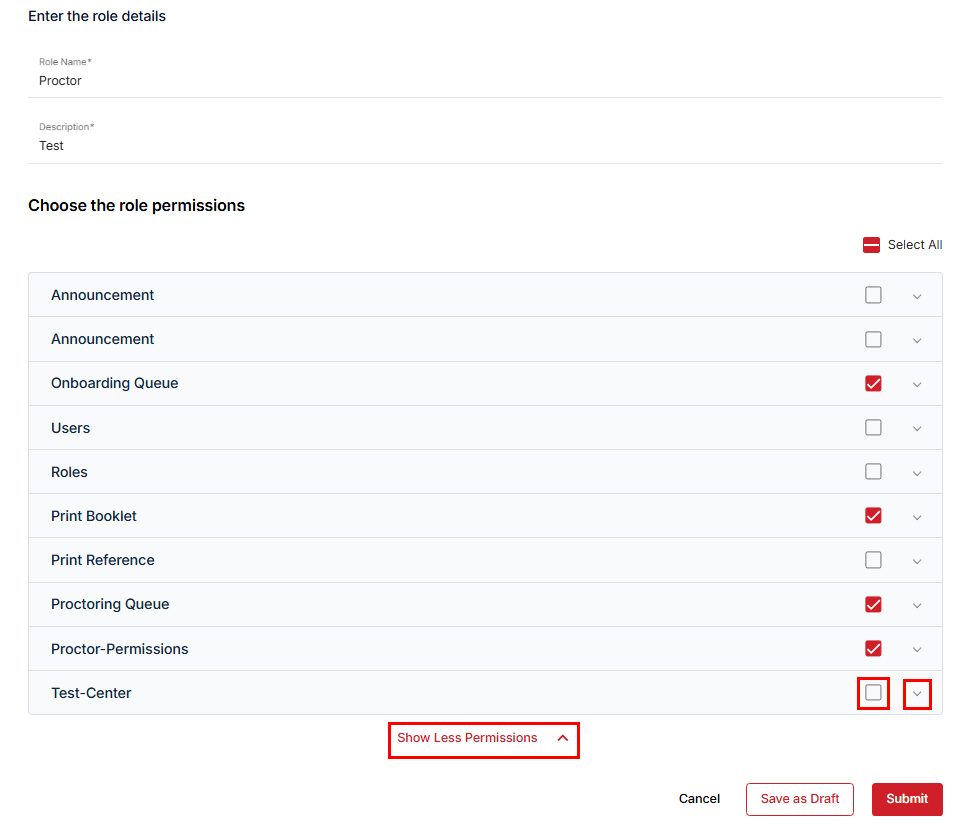
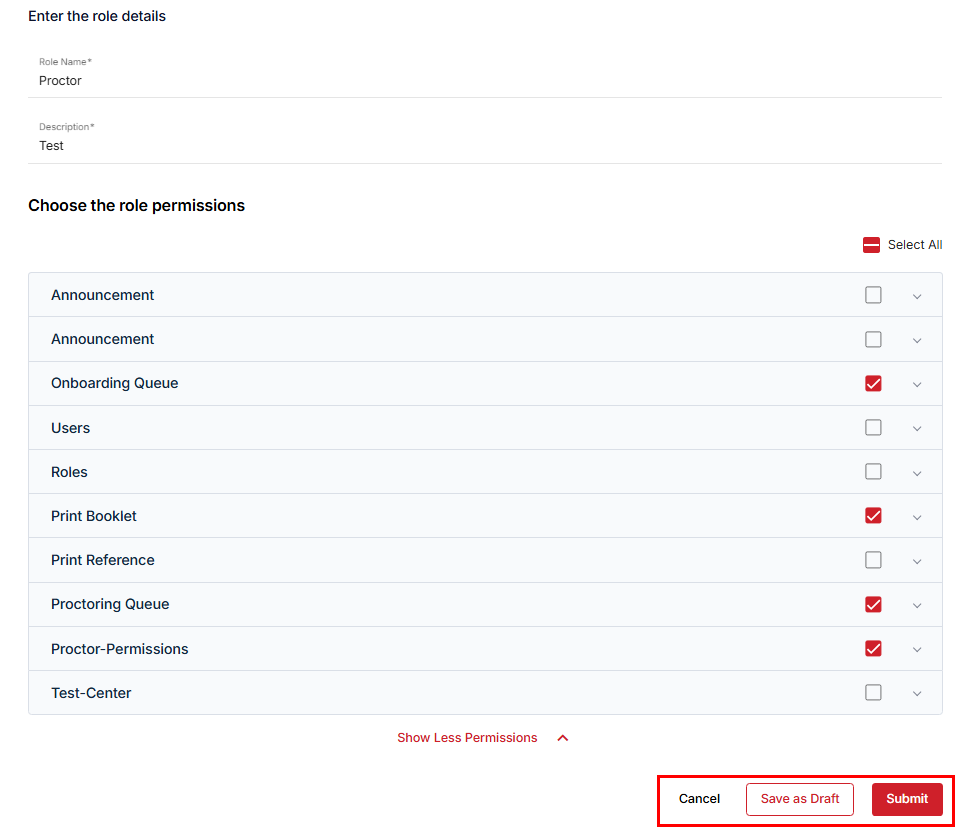
- Review all permissions listed on the page. To view the full set of permissions, click Show More Permissions at the bottom of the list.
- Click the checkbox to grant full access, or uncheck it to disable.
- Click the dropdown icon to view and manage various permission levels of the selected option.
- Click Submit to save and update the modifications. Save as Draft to save changes in a draft (the role will be moved to inactive state with modified changes) or Cancel to go back to the roles list without any changes.