Audits
The Audits section of the dashboard facilitates the review of test center audits by streamlining the process, supporting compliance checks to ensure that standards are met, and providing staff with a comprehensive overview of audit-related information for effective management and monitoring.
Audit List
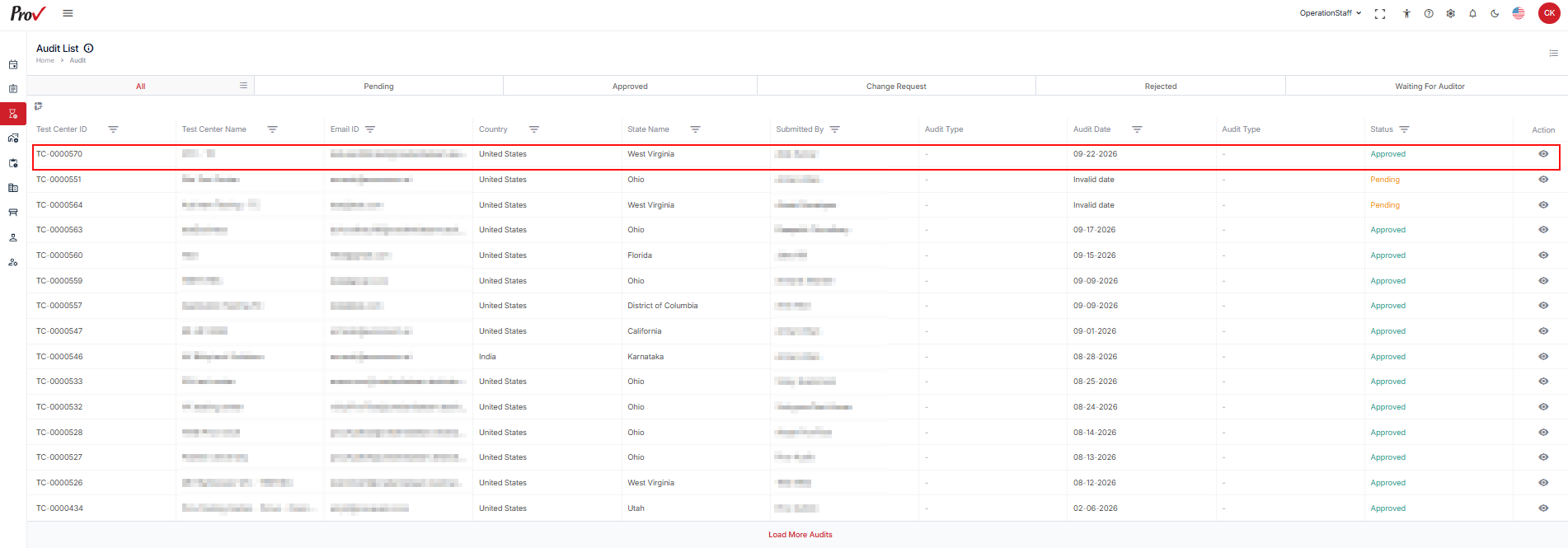
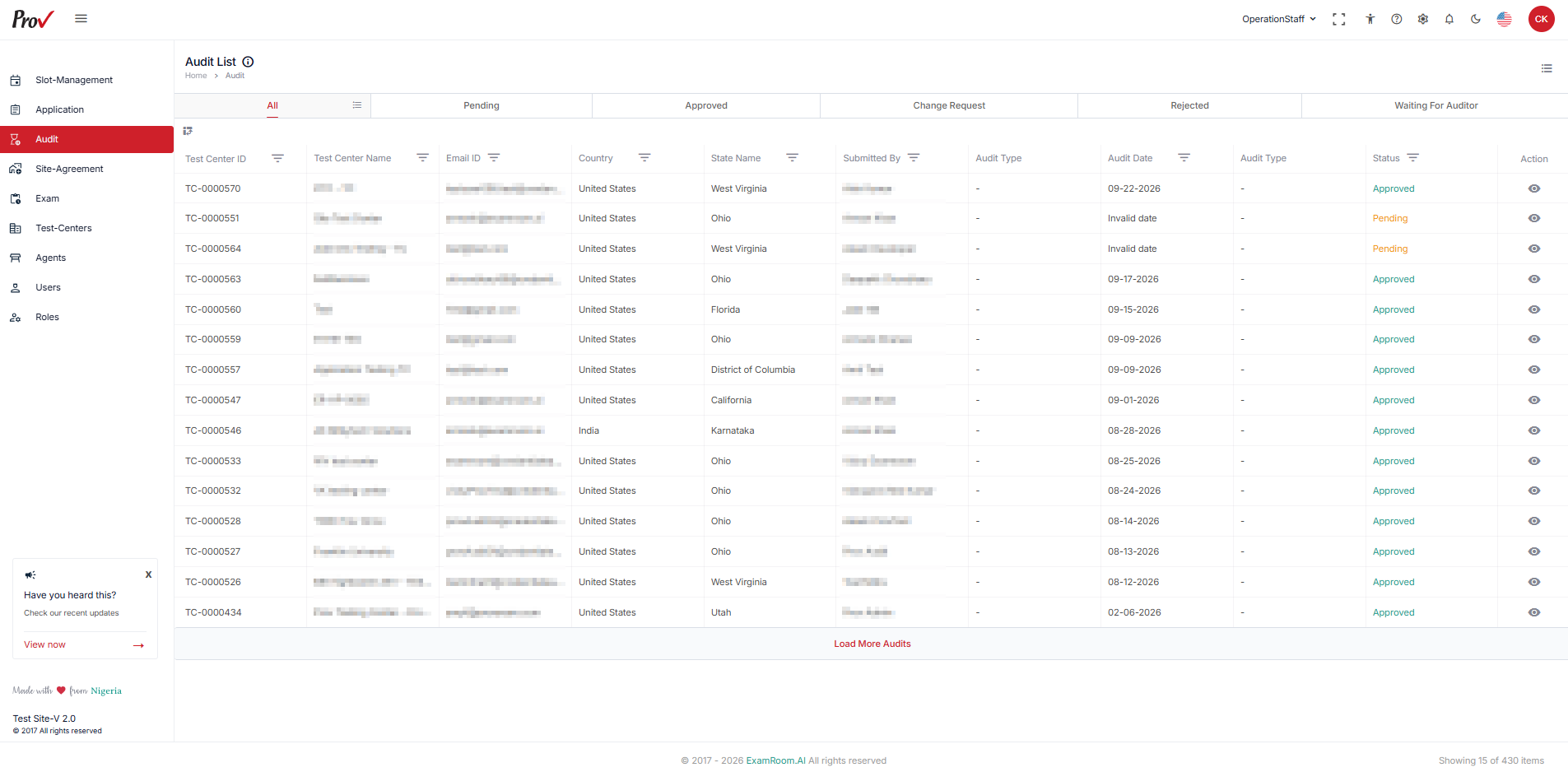
- Navigate to the left-side menu and select Audit.
- You can view audit forms organized into different tabs and tables based on their status. Each tab/table represents a specific status category for easier navigation and review.
- In the Audit section, all submitted audit lists are displayed in a tabular format with key information to identify the application, that includes the following details:
- The submitted audits are primarily organized by status:
- All: Displays every submitted audit form, regardless of status.
- Pending: Contains audit forms awaiting review or further action.
- Approved: Lists all audit forms that successfully met criteria.
- Change Request: Shows forms needing modifications before final approval.
- Rejected: Contains audit forms that did not meet requirements.
- Sub-headers provide information for each test center’s profile. The key information listed for each submitted audit form helps identify its corresponding and relevant test center.
- Test Center ID: Displays the unique ID assigned to every test center.
- Test Center Name: Displays the name of the test center.
- Email ID: Displays the Email ID of the test site manager.
- Country: Displays the location of the test site.
- State Name: Displays the location of the test site.
- Submitted By: Displays the name of the person who submitted the audit form.
- Audit Date: Displays the date the application was submitted.
- Status: Displays the application status as Pending, Approved, Change Request, or Rejected.
- Approved: Displays that the audit form is approved.
- Pending: Displays the application is awaiting review or further action.
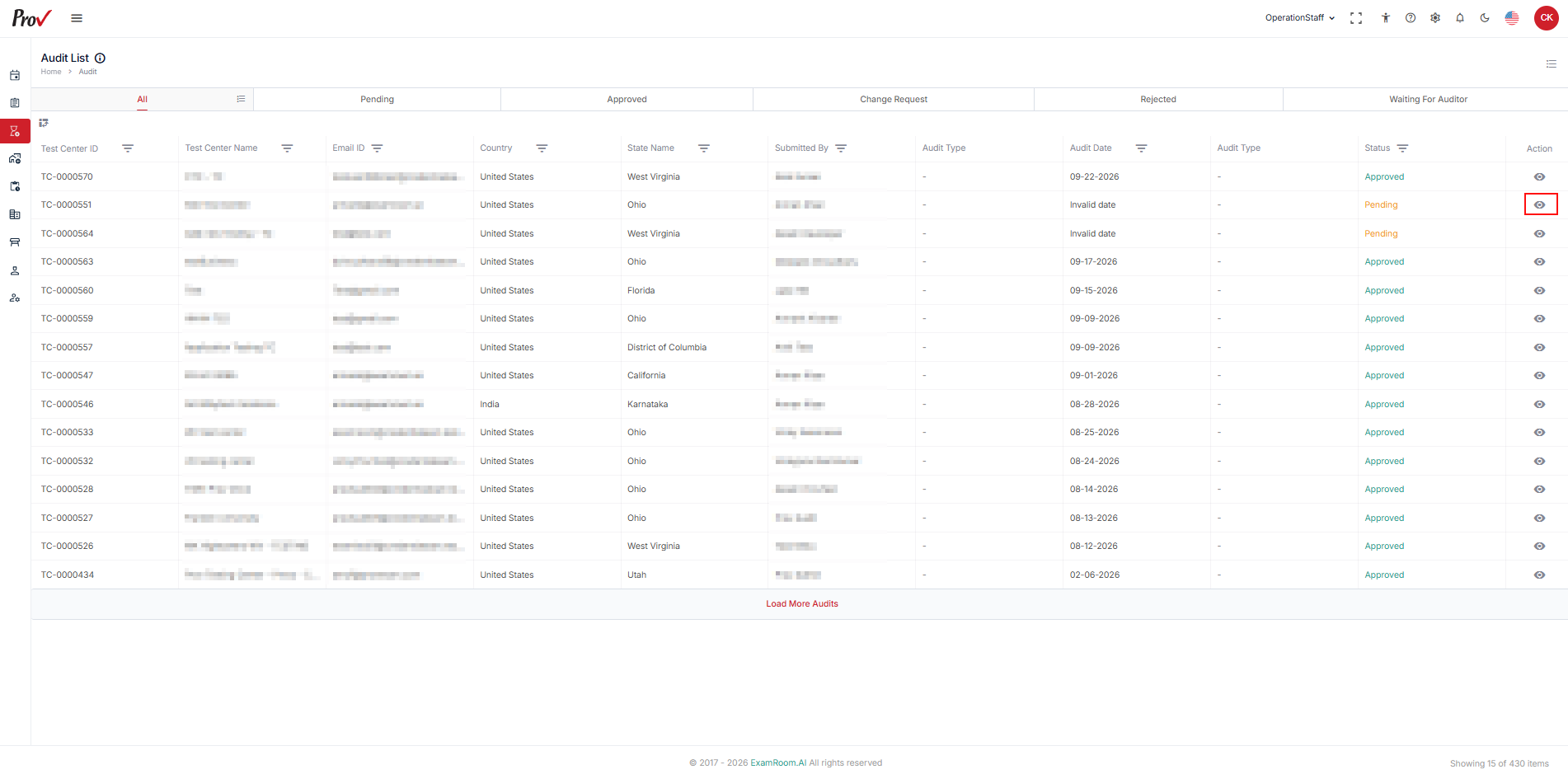
- Actions: Clicking on the view eye icon allows the user to view the detailed application form.
Customize the display of the Audit list
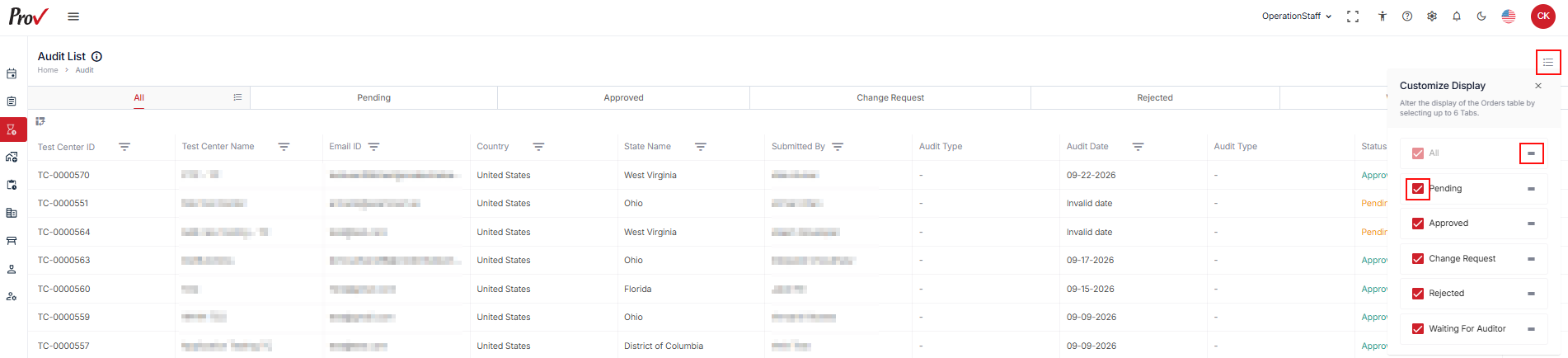
You can customize the table and arrange the columns as per your preference by following the below steps to customize the display of the table:
- Click the Hamburger Menu from the top right of the page and select the required check boxes to view the respective columns in the table.
- To arrange/rearrange the order of the columns, drag the Drag Icon provided next to each column label.
Review Audit Form
- You can view audit forms in different tabs and tables, organized by status.
- Rejected audit forms that fail to meet the required standards must be revised accordingly.
- Pending audit forms require your review and attention before they can proceed through the approval process.
- If modifications are needed, you can submit a change request, which will be recorded in the activity timeline.
- Applications that meet all criteria will be approved, and Site Managers will be notified to proceed with the next steps.
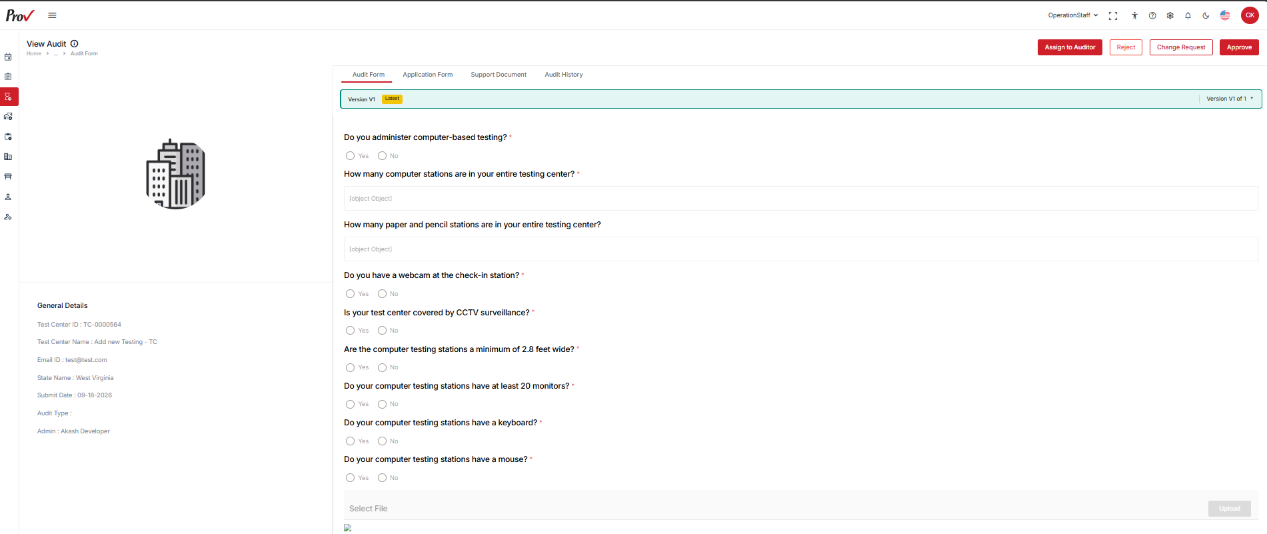
- From the audit list, select an audit form with a pending status for review. In the Action column, click the View icon to open the audit form.
- On the View Audit page, review the submitted audit form details to manage the audit.
- Applications that meet all criteria can be approved, and Site Managers will be notified to proceed with the next operational steps.
- In the top right corner of the screen, there are three options available.
- Click on Reject to deny the application if it does not meet the required criteria or standards.
- Click on Request Change to ask the applicant to make specific modifications to improve their application submission.
- Click on Approve to accept the application when it satisfies all requirements and meets our standards for enrollment, and a confirmation pop-up notification appears.
- Click Assign to Auditor to assign the audit form to auditors for the physical inspection.
Note:
- Operations Staff can reject, approve, or send back for change requests.
- Based on the approval, the Site Manager can view the status of the application.
Audits List – Approved
Access and manage approved audits and review completed audit tasks for reference.