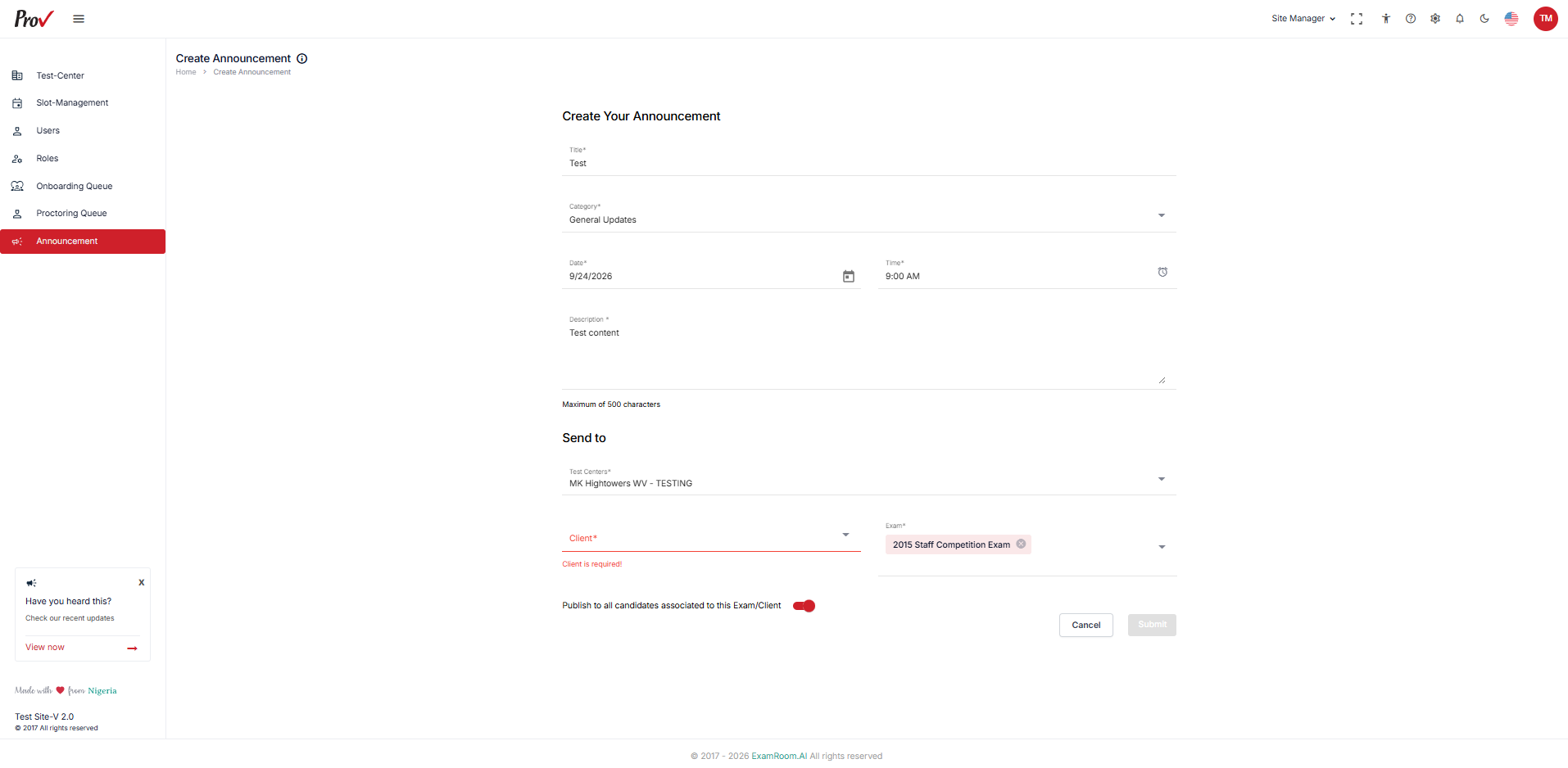
View Announcement List
The Announcement feature allows you to view existing announcements and create new announcements for selected test centers, clients, and exams.
After logging into the Prov TSM console:
- Click Announcement from the navigation menu.
- The Announcement List page shows the previously created announcements. The announcements are listed in the table with the following information:
- Announcement Name
- Description
- Country Name
- Created Date
- Test Center
- Action
Note: If no announcements are available, the system displays No data to display.
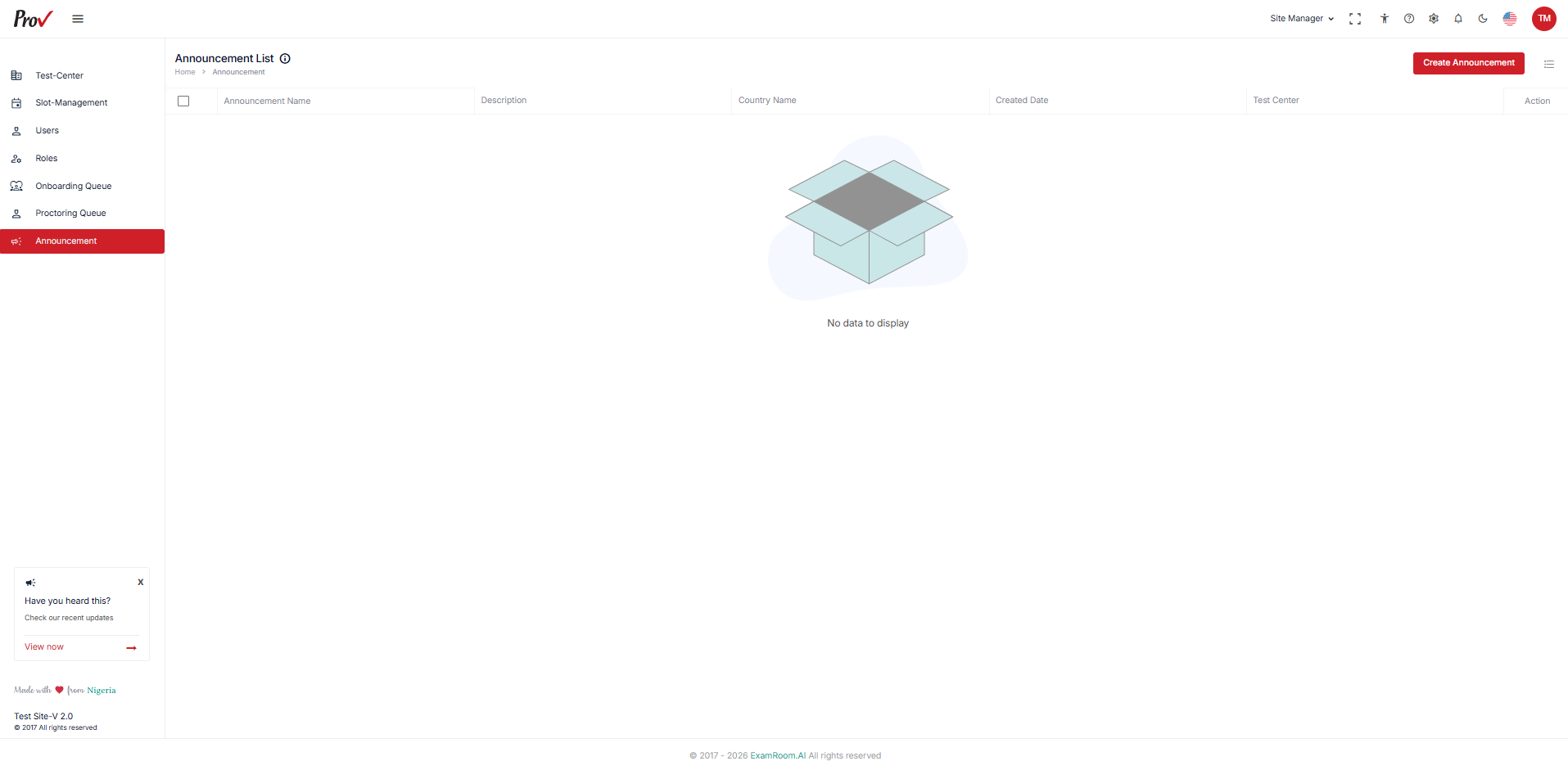
Create Announcement
To create a new announcement,
- After navigating to the Announcement, click Create Announcement.
- In Create Your Announcement, enter the required announcement details.
- In the Title field, enter the announcement title.
- In the Category field, select the appropriate category.
- In the Date field, select the date when you want to publish.
- In the Time field, select the time when you want to publish.
- In Description, enter the announcement details.
- Note: The description can contain a maximum of 500 characters.
- In the Send to section,
- Select the required Test Centers.
- In the Client field, select the applicable client.
- In the Exam field, select the applicable exam.
- To publish the announcement to all candidates associated with the selected exam and client, enable the Toggle button for the “Publish to all candidates associated with this Exam/Client” option.
- Click Submit to create the announcement.
- Click Cancel to discard and return to the previous page.
- Click Cancel to discard and return to the previous page.